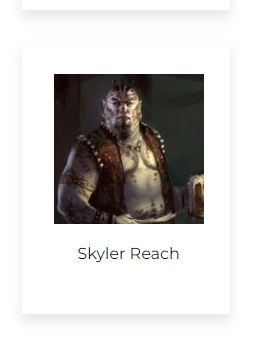
Fixing Thumbnail Crops
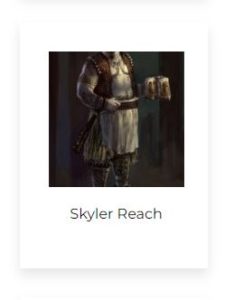
Sometimes the Featured image we’ve uploaded for something may be cropped weird by wordpress and end up looking like this.

To fix this, click on the Media in the left side menu.
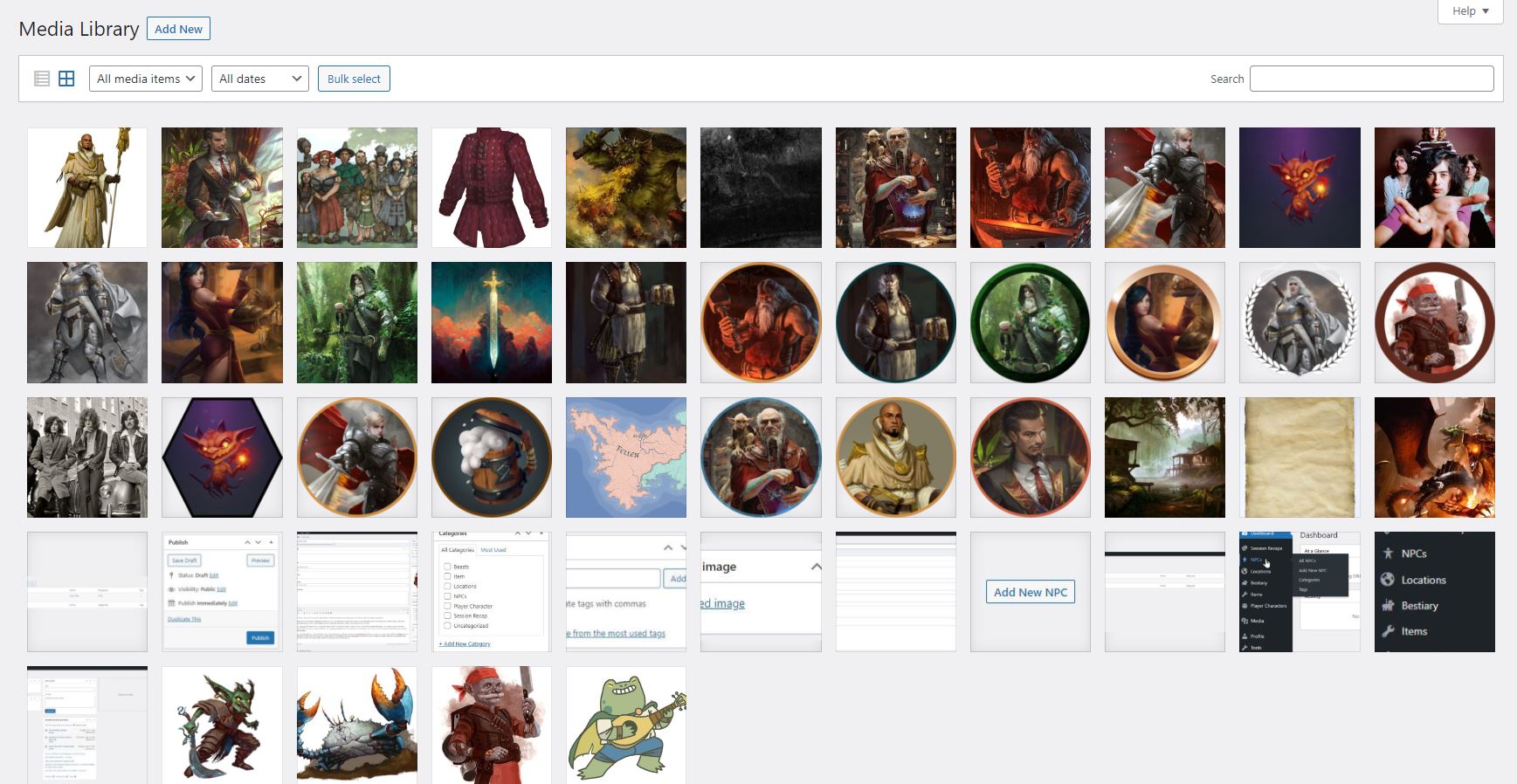
This will open the Media Library and show you all the files that have been uploaded to the site. At the top there are also filtering and search capabilities. Clicking on the image you want to edit will bring up…
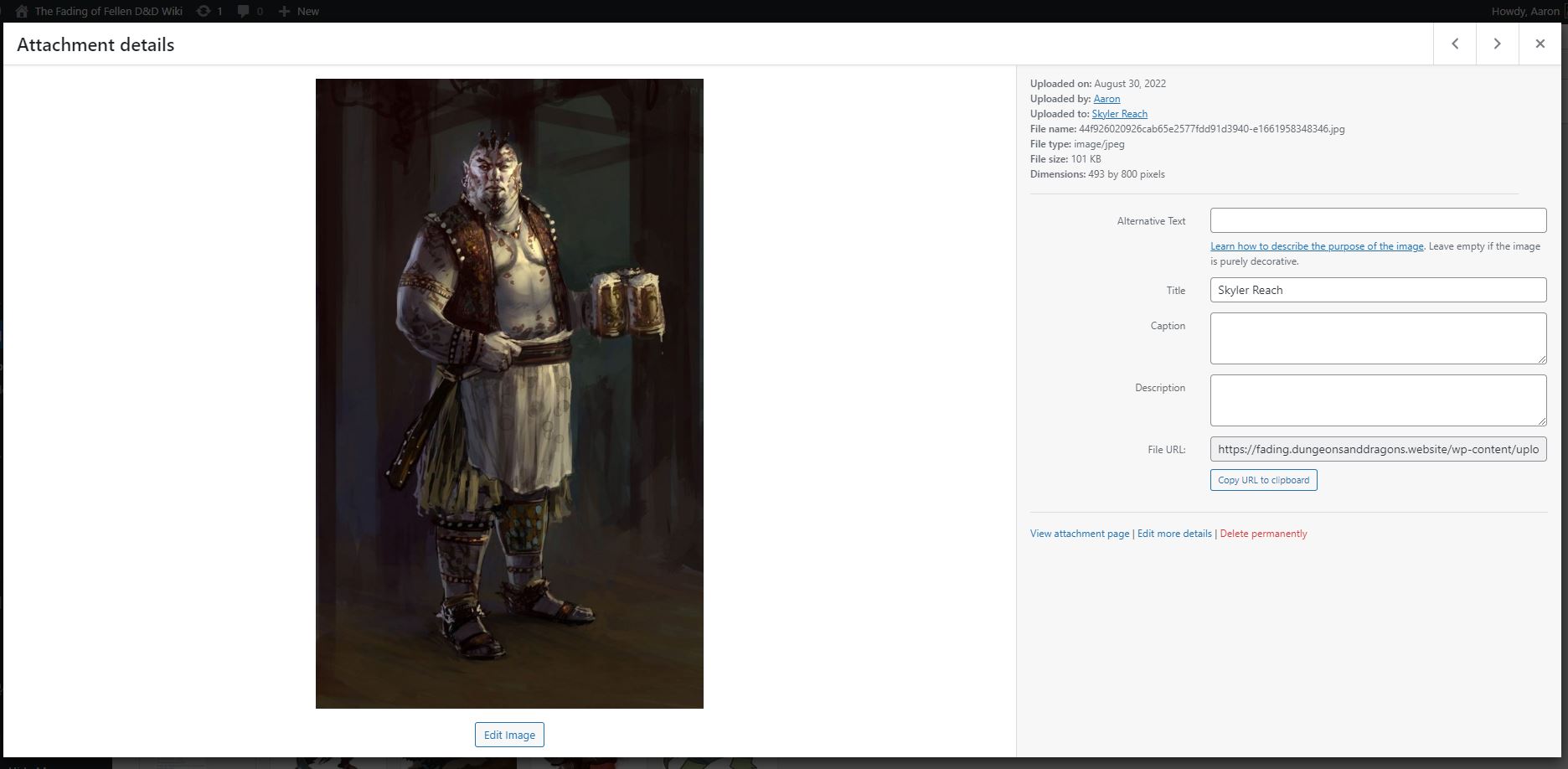
the Attachment Details. Here you can see all the file’s information.
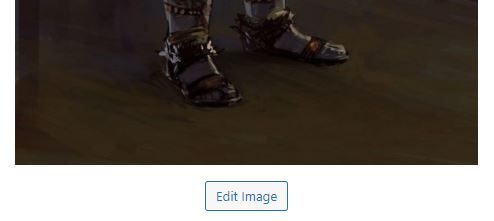
Click the “Edit Image” button at the bottom of the preview image.
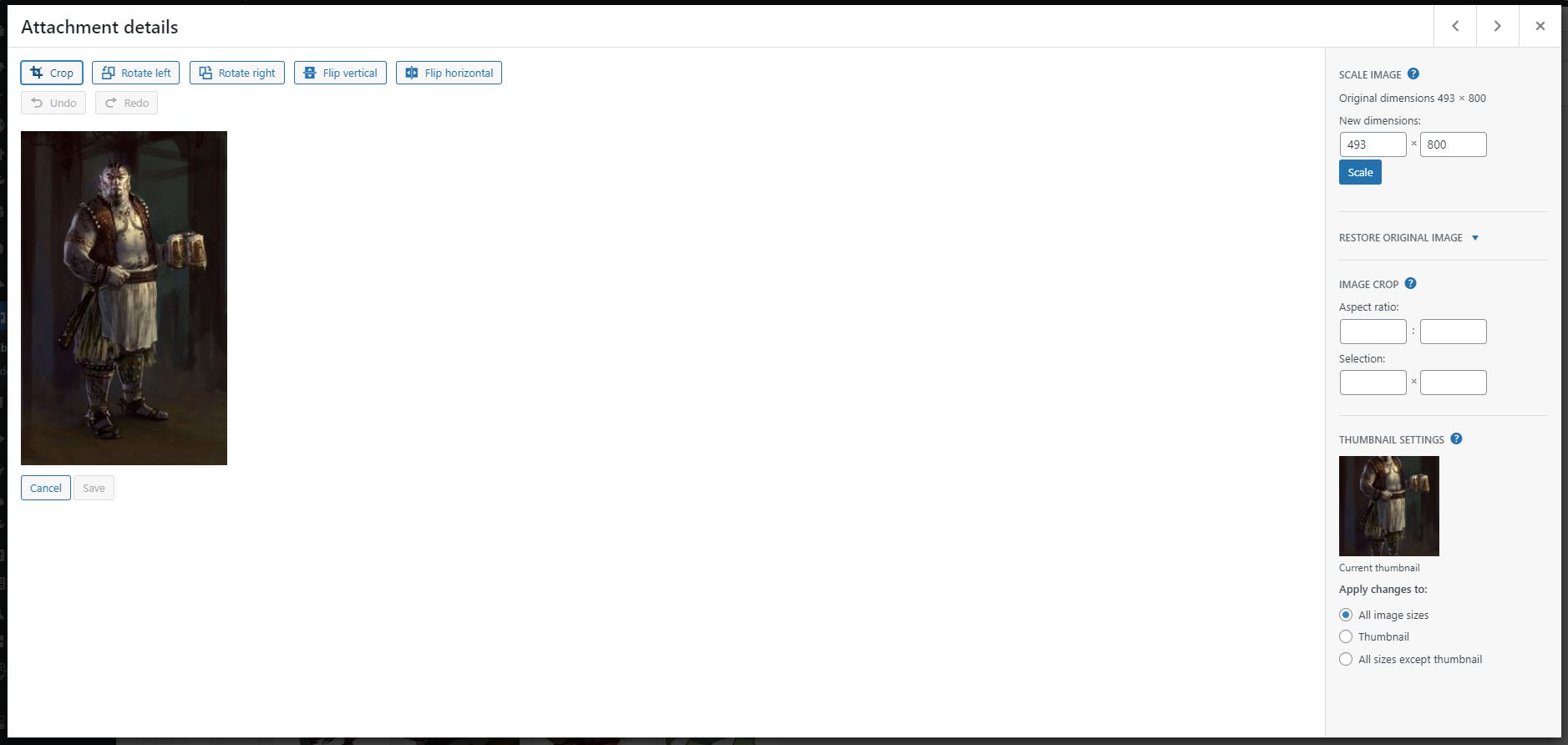
This brings up the attachment editor.
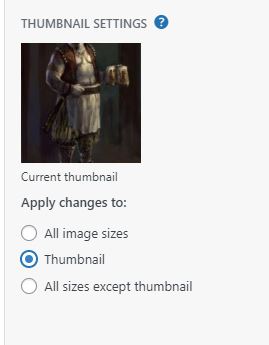
We want to make sure that we are only cropping the thumbnail image. We can set this in the “THUMBNAIL SETTINGS” in the bottom right corner.
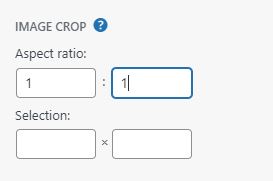
Next we want the thumbnail to be square. In the “IMAGE CROP” section (above the THUMBNAIL SETTINGS) we can set the Aspect Ratio to 1:1.

Next we chose the Crop tool from the editor tool bar.
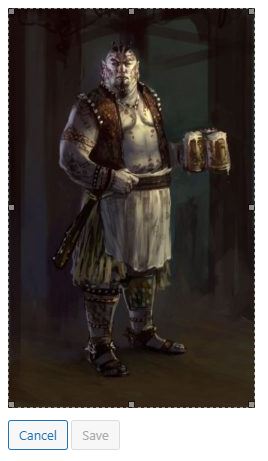
The crop area will be at the original aspect ratio until you use one of the 8 handles to resize the crop.
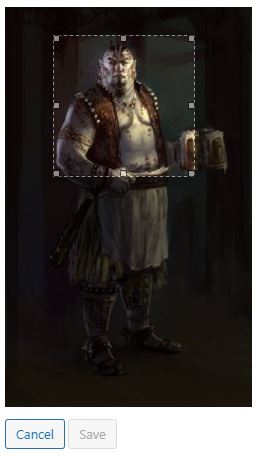
Once we have the crop set the way we want it, we can hit the crop tool button again to set it.
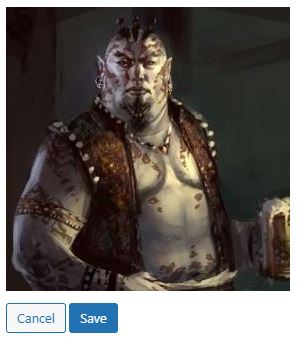
Once the crop is set, click Save. Doing so should bring us back to the Attachment Details. We can close that screen and the thumbnail crop should be fixed.